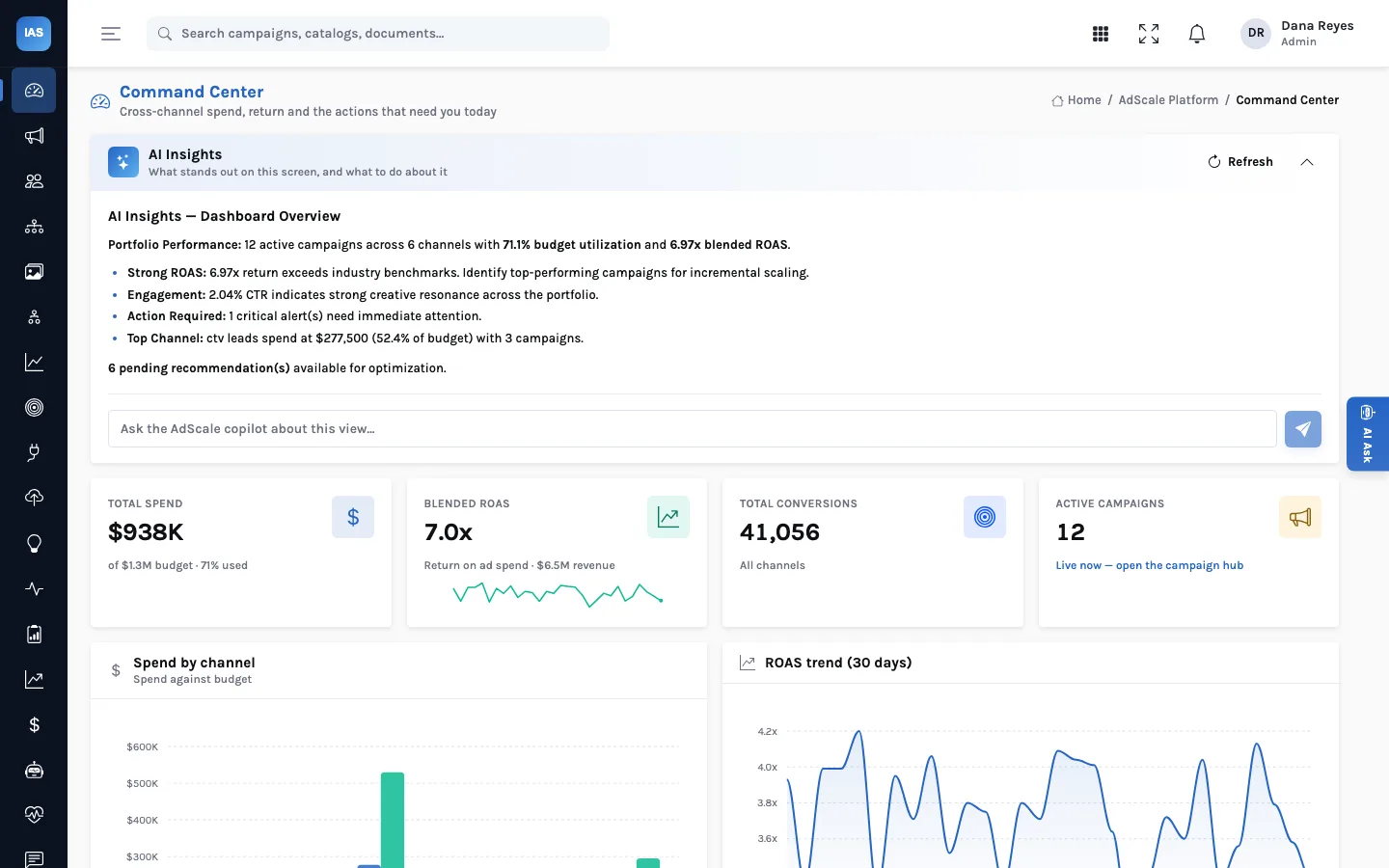
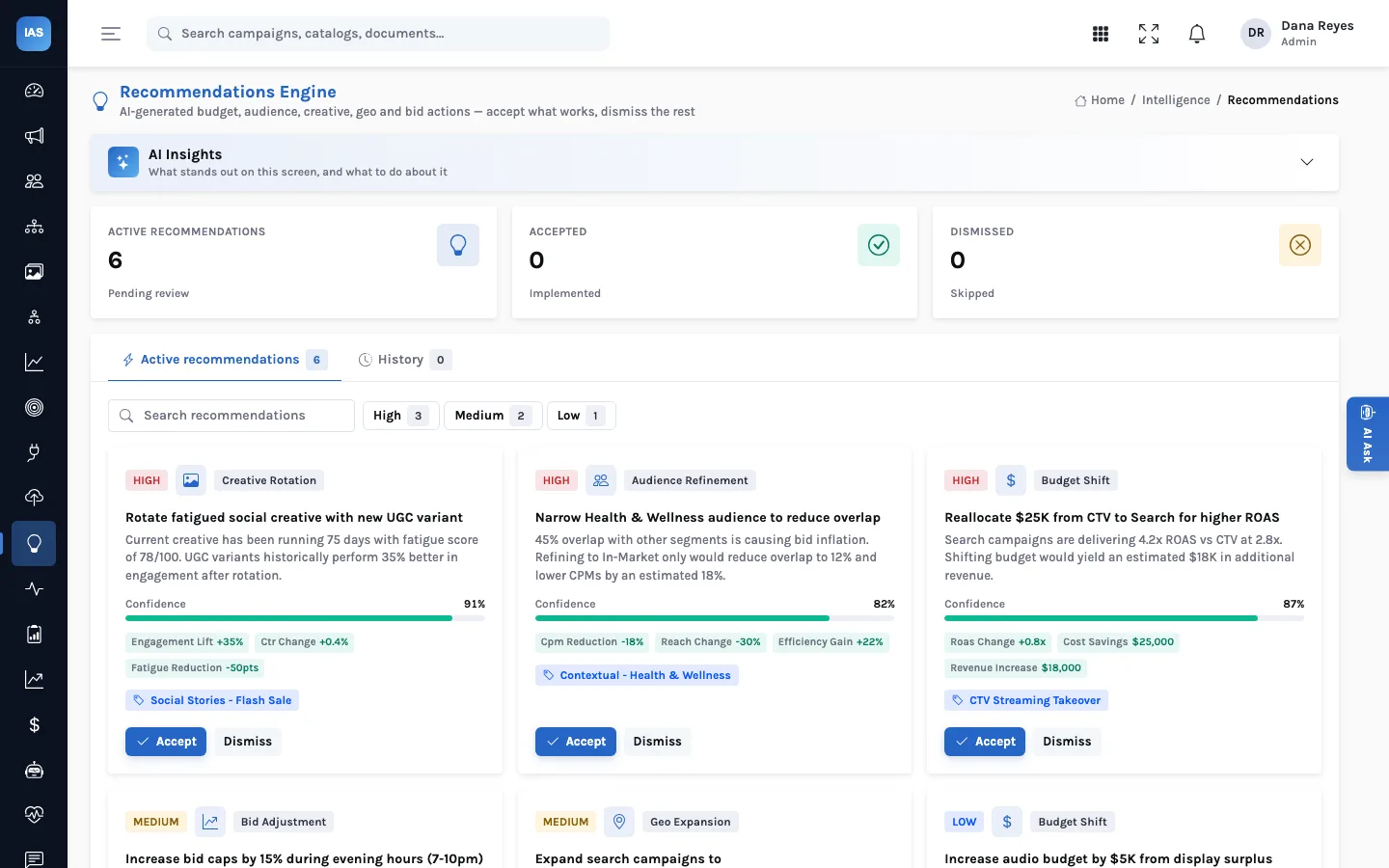
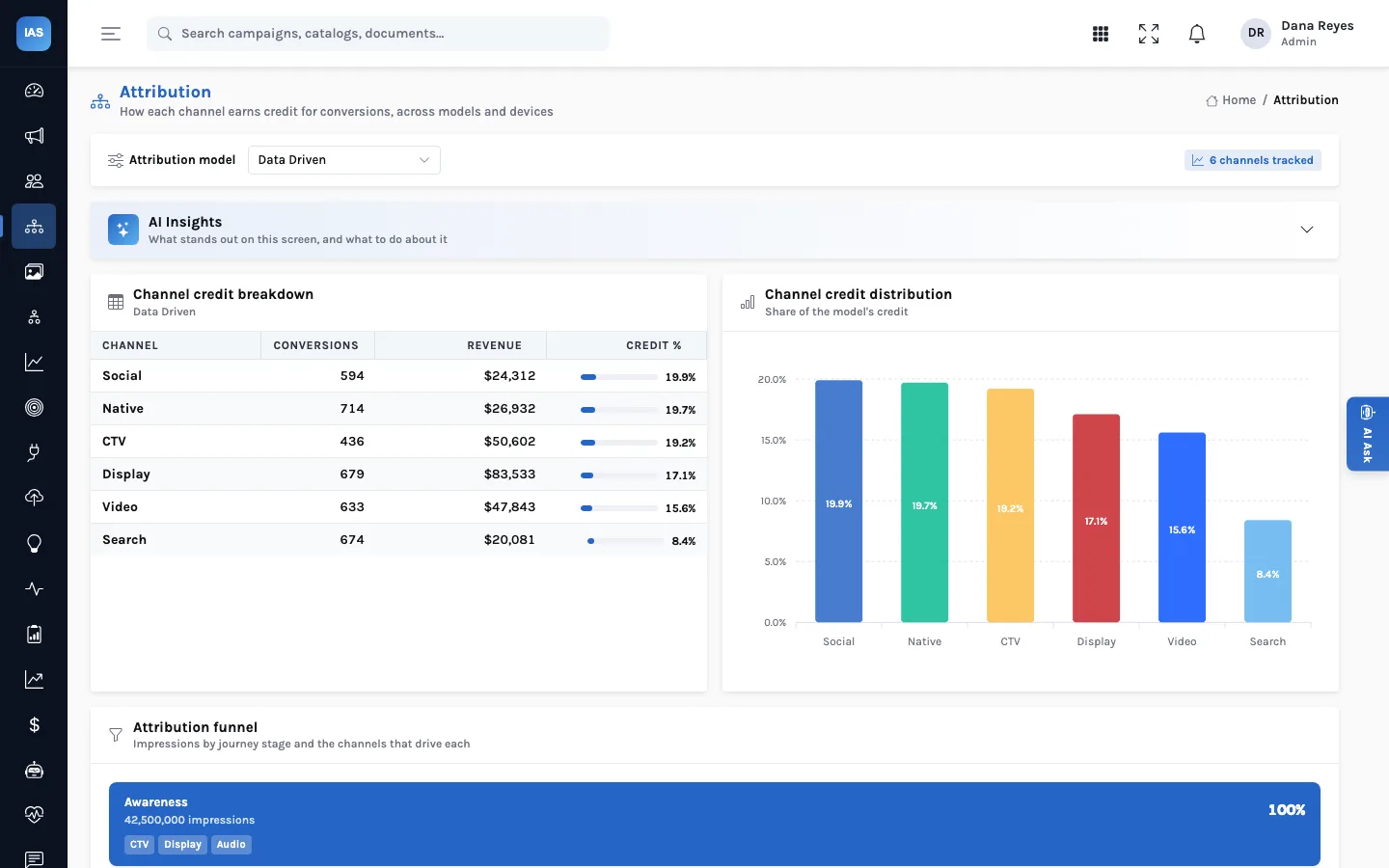
The first week with any analytics tool decides whether people trust it. If the totals on the first dashboard don't match the platform consoles, nobody opens it again. This guide sets out an order for loading InsightAdScale that gets the Command Center right first time, and the conventions that keep it right.
Set up people and roles, then one connector per ad platform, then campaigns on those connectors with consistent names, budgets and spend, then creatives and audiences, then attribution results and recommendations. Check the Command Center against your platform totals before you invite the wider team.
1. People and roles
Sign-in, users and roles come from the shared Insight platform, with local accounts or Okta single sign-on. Two roles matter on day one: administrators can create, edit and delete connectors, campaigns, creatives, audiences, alerts and recommendations; everyone else can read the AdScale screens and work the recommendations queue. Keep the administrator group small.
2. One connector per platform
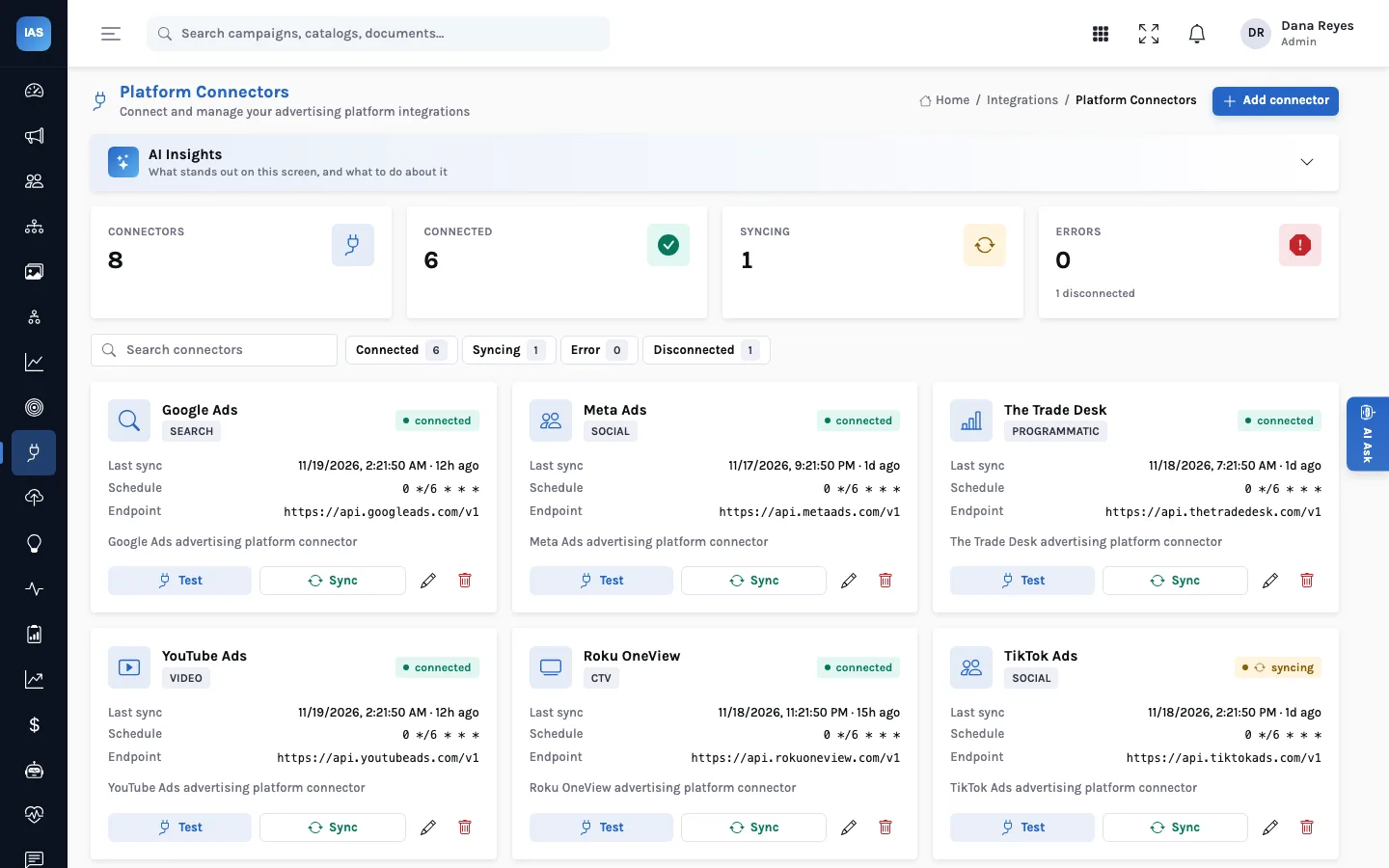
On Platform Connectors, add one connector for each ad platform or DSP you buy through. Each has a name, a platform type (search, social, programmatic, video, CTV and so on), an optional API endpoint, a sync schedule and a description. The cards show each connector's status (connected, syncing, error or disconnected) and when it last synced; filter chips count each status.
3. Campaigns, with names you can filter
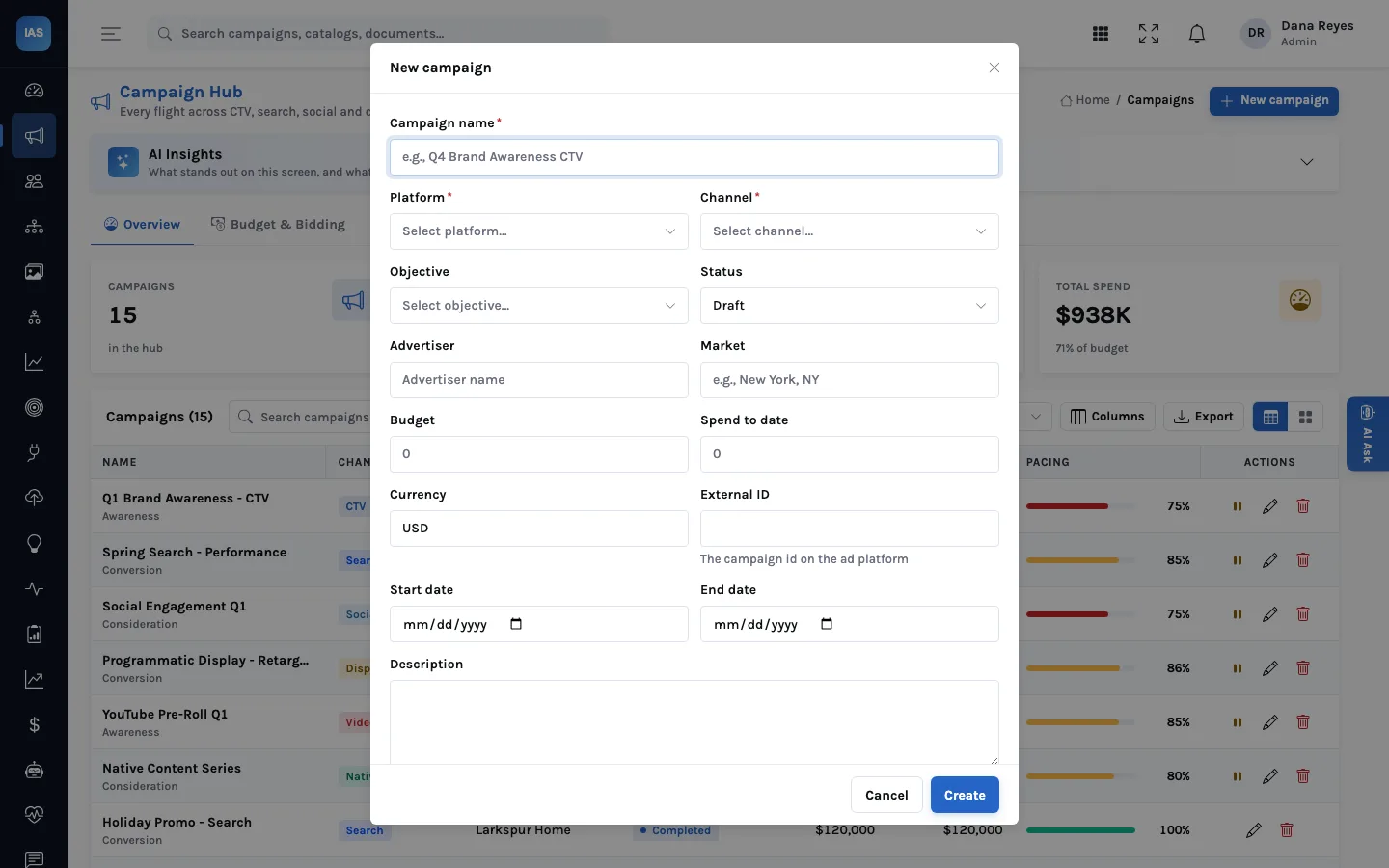
A campaign belongs to a connector, so the New campaign form asks for the platform first. It then takes the channel, objective, status, advertiser, market, budget, spend to date, currency, the campaign's ID on the ad platform, start and end dates and a description. Pacing is spend as a share of budget, so the two numbers you enter here drive every pacing bar.
Agree conventions before anyone types:
| Field | Convention that helps | Why |
|---|---|---|
| Name | Period, objective and channel, the same way every time | Search and sort work; people can read the table |
| Advertiser | One spelling per advertiser | Filters and exports group correctly |
| Market | One list of markets (for example DMAs) | Geo & Market adds up |
| Budget and spend | Same currency per campaign; spend updated on a schedule | Pacing and blended ROAS are right |
| External ID | Always filled in | Reconciling with the platform takes minutes, not hours |
| Status | Draft until it is live; completed when it ends | Active counts and AI summaries are accurate |
4. Creatives and audiences
Creatives sit on campaigns, with format, messaging theme, impressions, clicks, conversions, CTR, days active and a fatigue score. Audiences carry type, size, match rate, conversion rate, source, overlap and saturation risk. Both can be managed by administrators through the API, and both drive their own screens: Creative Intelligence and Audience Explorer.
5. Attribution results and recommendations
Attribution results are stored per channel and per model, so load the models your team reports on. In the current build there is no upload screen or API endpoint for attribution results or for daily metrics (impressions, clicks, conversions, revenue): your data team writes them to the AdScale tables directly, as a scheduled job. Recommendations are created through the API by an administrator, an analyst's script or a pipeline, each with a type, priority, entity, rationale, confidence and projected impact. See how the queue works.
Loading through the API
For anything beyond a handful of campaigns, a script is faster and less error-prone than the form. Every AdScale endpoint sits
under /api/adscale/, and the write calls need an administrator's sign-in or API key from the Insight platform.
| Record | Create | Required fields | Also useful |
|---|---|---|---|
| Platform connector | POST platform/ | name, platform type | API endpoint, sync schedule (cron), description |
| Campaign | POST campaign/ | platform ID, name, channel | external ID, objective, budget, spend, currency, dates, status, advertiser, market |
| Creative | POST creative/ | campaign ID, name, format | impressions, clicks, conversions, CTR, fatigue score, messaging theme, days active |
| Audience | POST audience/ | name, segment type | size, match rate, source, conversion rate, overlap score, saturation risk |
| Recommendation | POST recommendations/ | type, title | priority, entity, rationale, confidence, projected impact |
Updates use PUT on the same paths with the record's ID, and a campaign's status has its own call, so a nightly job can mark finished flights completed without touching anything else. Connector names must be unique; creating a second connector with the same name is refused, which is a useful guard when a script runs twice.
Worked example: mapping a platform export
A made-up advertiser's search export has the columns Campaign, Campaign ID, Budget, Cost, Start, End and Status. The mapping is short: Campaign to name, Campaign ID to external ID, Budget to budget, Cost to spend, Start and End to the dates, Status to draft, active, paused or completed. Channel (search), advertiser, market, currency and the connector's ID are constants for the file. Two things need a decision before the first run: whether Budget in the export is daily or for the whole flight (InsightAdScale's budget is the flight total that pacing is measured against), and how the platform's status words map to InsightAdScale's statuses.
Common setup mistakes
- Daily budgets loaded as flight budgets. Pacing looks wildly over 100%. Convert to the flight total first.
- One connector per advertiser instead of per platform. A connector is the platform you buy through; the advertiser is a field on the campaign.
- Spend loaded once and never again. Pacing and utilisation drift away from the platforms within days. Schedule the update.
- Channel names that differ from the list. Use the channel values the screens group by (CTV, search, social, display, video, native, audio), or one channel splits into two rows.
6. Check before you invite the team
- Open the Command Center and compare total spend and budget with your platform consoles for the same period.
- Filter the Campaign Hub by channel and compare each channel's spend with its platform.
- Open three campaigns at random and check their external IDs against the platform.
- Read the AI Insights summary: the numbers it quotes should be the numbers on the tiles.
- Only then invite buyers and analysts, with a note on the conventions above.
The Data Ingestion screen can help before a load: drop a CSV or JSON file and it reports the row and column counts, a quick check that an export is complete. In the current build it profiles the file without storing it.
Questions before the first load
How much history should we load?
Enough for the comparisons you will make in the first month: usually the current quarter of campaigns, plus the previous one if you want quarter-on-quarter views. More can be added later without changing anything already loaded.
Can buyers edit campaigns?
Only administrators can create, edit, pause or delete. If buyers keep spend up to date by hand, either make one buyer per team an administrator or move spend updates into the scheduled job.
Ready for the weekly rhythm? See the Monday budget review.